Just a Girl Who Loves Jesus: How to Choose, Download, and Use Your Digital Files the Right Way
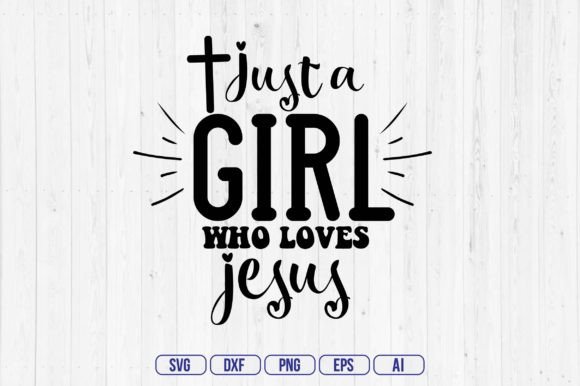
If you have come across the phrase Just a Girl Who Loves Jesus, you already know it is more than a design—it is a personal statement of faith, identity, and joy. Whether you are creating a custom T-shirt, a tote bag, a journal cover, or a piece of wall art for your home or small shop, these words carry meaning. The digital file sets available for this design typically include SVG, PNG, EPS, DXF, and AI formats, giving you everything you need for cutting machines, printing, and editing software. But getting the best result is not always as simple as clicking download and pressing “go.”
Many people—beginners and experienced creators alike—run into avoidable problems that cost time, money, or quality. The good news is that most of these issues come down to a handful of common mistakes, and once you recognize them, you can sidestep them completely. Here is what you need to know before you buy, open, or use your Just a Girl Who Loves Jesus digital download.
Mistake 1: Choosing the Wrong File Format for Your Project
When you open that .zip file and see SVG, PNG, EPS, DXF, and AI files inside, it can feel overwhelming. Some users grab the first one they see or assume all formats work the same way. That assumption leads to frustration.
What Actually Happens
If you try to open an SVG in a basic photo viewer or attempt to import a PNG into Cricut Design Space without understanding layers, the result can be blurry, misaligned, or impossible to edit. The SVG file is built for cutting machines like Cricut and Silhouette, but it needs to be imported correctly. The PNG works beautifully for print projects or mockups, but its transparent background only helps if you know how to preserve it.
The Better Approach
Before you even unzip the file, think about your end goal. Are you cutting vinyl for a shirt? Use the SVG or DXF. Are you printing a design for a sticker or card? Go with the 300 DPI PNG. Do you plan to customize the colors or text in Adobe Illustrator? Open the AI or EPS file. Matching the format to the task is the simplest way to save rework.
Here is a quick reference based on what you will find in your download:
- SVG (Word by layer): Best for Cricut and Silhouette. Each word or element can often be separated if the file is built with layers.
- PNG (300 DPI, transparent background): Ideal for printing, digital mockups, and use in programs like Photoshop or Canva.
- EPS (vector, editable): Works well in professional design software and can be scaled infinitely without losing quality.
- DXF (AutoCAD format): Another solid option for cutting machines, especially if you use older software versions.
- AI (Adobe Illustrator source file): Gives you full editing control if you have Illustrator—great for changing colors, resizing, or adding effects.
Mistake 2: Overlooking the “Word by Layer” SVG Feature
The phrase “SVG File Word By Layer” appears in many of these listings, but it is easy to overlook what that actually means. Some buyers assume any SVG will have each word on a separate layer, but that is not always the case with generic files. When you see that phrase, it is a specific advantage.
How This Affects Your Project
If you buy an SVG where all the text is merged into one shape, you cannot rearrange the words or change individual colors on your cutting machine. That matters if you want “Just a Girl” in pink and “Who Loves Jesus” in gold. Without separate layers, you are stuck with one solid color, and any attempt to ungroup may break the design.
What to Check Before You Download
Look at the product description or preview images. A good file set will show that each word can be individually moved or colored. Once you open the SVG in your design software, inspect the layers panel. If you see separate entries for each word, you are in good shape. If everything is one flattened shape, contact the seller before cutting—or use the AI or EPS file to break it apart manually if you have the right tools.
Mistake 3: Assuming “Digital Download Only” Means Instant Perfection
There is a common misunderstanding that because you receive the files immediately, they should work perfectly with zero adjustments. That mindset leads to giving up too soon or blaming the seller for issues that are actually simple to fix.
The Reality
Your cutting machine or design software may have specific import settings. For example, Cricut Design Space sometimes scales down large SVGs, or it may treat grouped elements differently than expected. A PNG with a transparent background might appear to have a white box if your preview software does not support transparency. None of these are flaws in the file.
Steps to Avoid Frustration
- Read any instructions included in the .zip folder. Sellers often include a text file or PDF with tips.
- Test the file with a small scrap piece of material before cutting the final product.
- Make sure your software is updated. Older versions of Silhouette Studio, for instance, handle DXF files differently than newer ones.
- If a file looks off, try importing a different format from the same set before troubleshooting your machine.
Mistake 4: Using the PNG for Cutting and the SVG for Printing
It sounds obvious, but mixing up the intended use of each format happens more often than you think. A PNG is a raster image—it is made of pixels. An SVG is a vector image—it is made of mathematical paths. Use the PNG for cutting, and you will get jagged edges and poor precision. Use the SVG for a printed item that requires high-resolution detail, and you may struggle with color blending or shadows that a vector file cannot easily replicate.
How to Keep It Straight
Think of it this way: vectors (SVG, EPS, DXF, AI) are for cutting and scaling. Rasters (PNG, JPG) are for printing and digital display. For the Just a Girl Who Loves Jesus design, if you want a layered vinyl look on a mug, use the SVG. If you want a full-color print on a poster, use the high-resolution PNG. And if you want to edit the design itself, use the AI or EPS.
Mistake 5: Ignoring the 300 DPI Specification
The PNG file in your download is labeled as 300 DPI (dots per inch). That number matters, especially if you plan to print the design. Some users see “PNG” and assume it is low resolution because that is what they are used to with web graphics. In reality, 300 DPI is the standard for professional-quality printing.
When It Goes Wrong
If you open that PNG and resize it larger in a program that does not preserve resolution, you lose the sharpness. The letters in “Just a Girl Who Loves Jesus” can become pixelated. The same happens if you accidentally use a lower-resolution preview image from the listing instead of the actual download.
A Simple Check
Before you print, verify the image dimensions in your software. A 300 DPI PNG at 6 inches wide will be 1800 pixels across. If your file shows fewer pixels than expected, go back to the .zip folder and make sure you are using the correct PNG. Also, avoid scaling the design larger than its original size—vector files handle scaling, but the PNG does not.
Mistake 6: Forgetting to Back Up or Organize Your Files
Digital downloads are easy to misplace. You buy the file, download it once, unzip it, and then accidentally delete the folder or lose track of which version you used. When you need to remake a shirt for a friend or reprint a card six months later, you have to search through old emails or purchase history.
Why This Hurts Your Workflow
If you run a small business or regularly create gifts for others, time is valuable. Searching for files or re-downloading them from a shop (if they are even still available) breaks your momentum.
What Experienced Creators Do
- Create a dedicated folder on your computer or cloud drive labeled “Faith Designs” or “SVG Files.”
- Keep the .zip file intact as a backup, and extract the contents into a clearly named subfolder.
- Rename files after you customize them—for example, “JustAGirl_LovesJesus_PinkGold_Final.svg.”
- If you use the design in a physical project, take a photo and save it with the file for easy reference.
Mistake 7: Not Checking for Compatibility with Your Specific Machine or Software
Even though the listing says “COMPATIBLE WITH Cricut Silhouette Inkscape Adobe Photoshop Adobe Illustrator,” that does not mean every file works perfectly with every version of those programs. Silhouette users on older software sometimes have trouble with SVG files and find DXF more reliable. Inkscape users may need to adjust the viewbox on SVG imports. Photoshop handles PNG and EPS well but does not natively open SVG without a plugin.
How to Avoid the Surprise
Before you make a purchase, take a moment to confirm which formats your software or machine handles best. Cricut Design Space accepts SVG, PNG, and DXF. Silhouette Studio (paid edition) works well with SVG and DXF, but the free version may only use DXF. If you are unsure, start with the SVG file because it is the most universal for cutting machines. If that fails, the DXF is your next best option. Keep the EPS and AI files for heavy editing, not for direct cutting.
Putting It All Together
Buying a digital download like Just a Girl Who Loves Jesus is meant to save you time and give you creative freedom. When you understand the strengths of each file format, check your software compatibility, and take a few minutes to organize your files, you avoid the most common headaches that trip up creators. The design itself is beautiful and meaningful—do not let a small technical misstep get in the way of making something you are proud to share.
Whether you are making a gift for a friend, a product for your Etsy shop, or something for your own home, the right preparation turns a simple download into a finished piece you will love. And when someone asks where you got it, you can say with confidence, “It started as a digital file—and I made it work perfectly.”